How to Edit Text on Photos: The Simple Guide (2026)
Learn how to edit text on photos in seconds. Fix a date, price or name in any picture on your iPhone, step by step, with Glyphswap. No design skills needed.
You took a great photo. Then you spotted a typo on the sign. Or the date is wrong. Or the price changed.
You do not need to retake the shot. You can edit text on photos in a few taps.
This guide shows you how. You will learn what it means to edit text on photos, which methods work, and how to get clean results. We also cover mistakes to avoid and how to edit text on photos responsibly.
Use the contents list above to jump to any part.
What does it mean to edit text on photos?
To edit text on photos means to change the words that already appear inside a picture.
Think of a shop sign, a menu board, a poster, a label or a screenshot. The words are part of the image. They are not a separate layer. So you cannot just click and retype.
When you edit text in an image, a tool must do three things:
- Find the old words.
- Remove them without leaving a mess.
- Draw the new words so they fit the scene.
That is hard to do by hand. It is why many people think it needs a pro.
It does not. Modern apps now handle the hard parts for you.
Why people edit text on photos
People change text in pictures for many good reasons. Here are the most common ones.
- Fix a typo. A misspelled word on a poster ruins an otherwise good photo.
- Update a date or time. An event moved. The flyer photo is now wrong.
- Change a price. A shop owner updates a sale sign for social media.
- Correct a name. A name tag, place card or label has a mistake.
- Make mock-ups. Designers show a client how a sign will look with new copy.
- Create jokes and memes. A road sign says something funny instead.
- Clean up screenshots. You hide a private detail before you share.
Notice the pattern. Most of these are small fixes. You do not need a full design suite. You need a fast, focused photo text editor.
Three ways to edit text on photos
There are three main approaches. Each has trade-offs.
1. Desktop design software
Programs like Photoshop let you edit text on photos with full control. You clone out the old text. You rebuild the background. You match the font by eye.
The result can look perfect. But it is slow. It needs skill. And it needs a computer.
For a small fix, it is overkill.
2. Cover it with a text box
Many free apps let you place a new text box on top of the photo. You pick a font and a colour.
This is quick. But the old words often show through. Or the new text looks pasted on. It rarely blends with the lighting, the texture or the angle.
It works for stickers and captions. It fails when you want the sign itself to change.
3. An AI photo text editor
This is the newest method. You select the old text. You type the new text. AI redraws that spot so it fits the picture.
It is fast. It runs on your phone. And it keeps the original look better than a plain text box.
This is the method we recommend when you want to edit text on photos quickly. It is also what Glyphswap does.
Meet Glyphswap: edit text on photos on iPhone
Glyphswap is an iPhone app made by Tegribas. Its main job is simple. It lets you change the words in any photo.
The home screen says it plainly: fix a date, a price or a name in seconds.
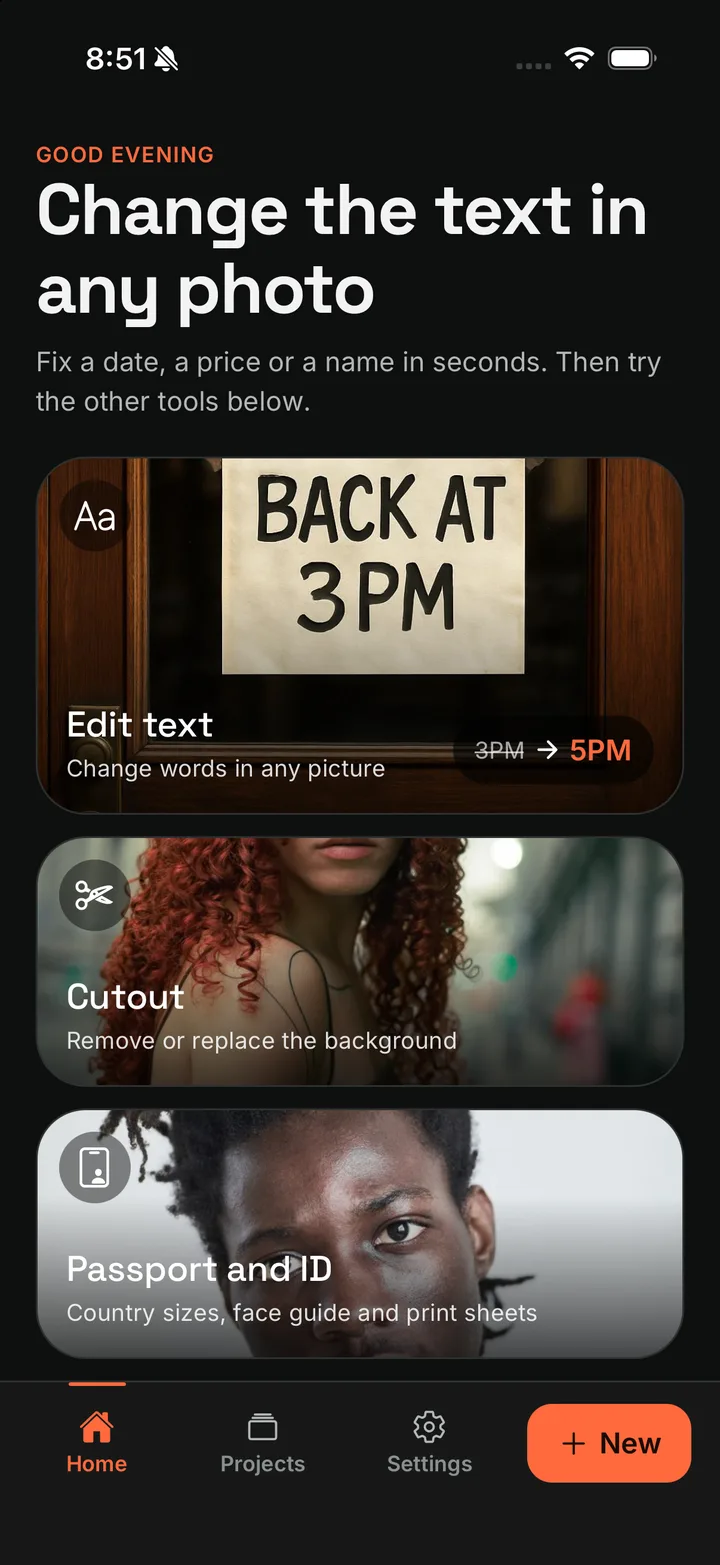
You get a clean flow:
- Open a photo.
- Draw a box around the text.
- Type the new words.
- Tap one button.
There are no layers. There are no masks. There is no font menu to fight.
Glyphswap does more than edit text on photos. It also removes or swaps backgrounds and makes passport photos. We cover those near the end.
How to edit text on photos with Glyphswap, step by step
Follow these steps. The first edit takes about a minute. After that, it takes seconds.
Step 1: Pick a clear photo
Start with a sharp photo. Good light helps. Flat, front-facing text works best.
If you are standing in front of a sign, take the photo straight on. Avoid sharp angles. Avoid glare.
A better source photo gives a better edit.
Step 2: Open the Edit text tool
Launch Glyphswap. Tap Edit text on the home screen. Then choose your photo.
Step 3: Box the words you want to change
Drag the box so it covers the old text. Keep it snug. Leave a small margin around the letters.
A tight box helps the app focus on the right area. It also keeps the rest of the picture untouched.
Step 4: Type the new text
Glyphswap shows two fields. The first is Text in the boxed area. It holds what the sign says now. The second is Change it to. This is where you type the new words.
In the example below, the sign says "BACK AT 3PM". We change it to "BACK AT 5PM".
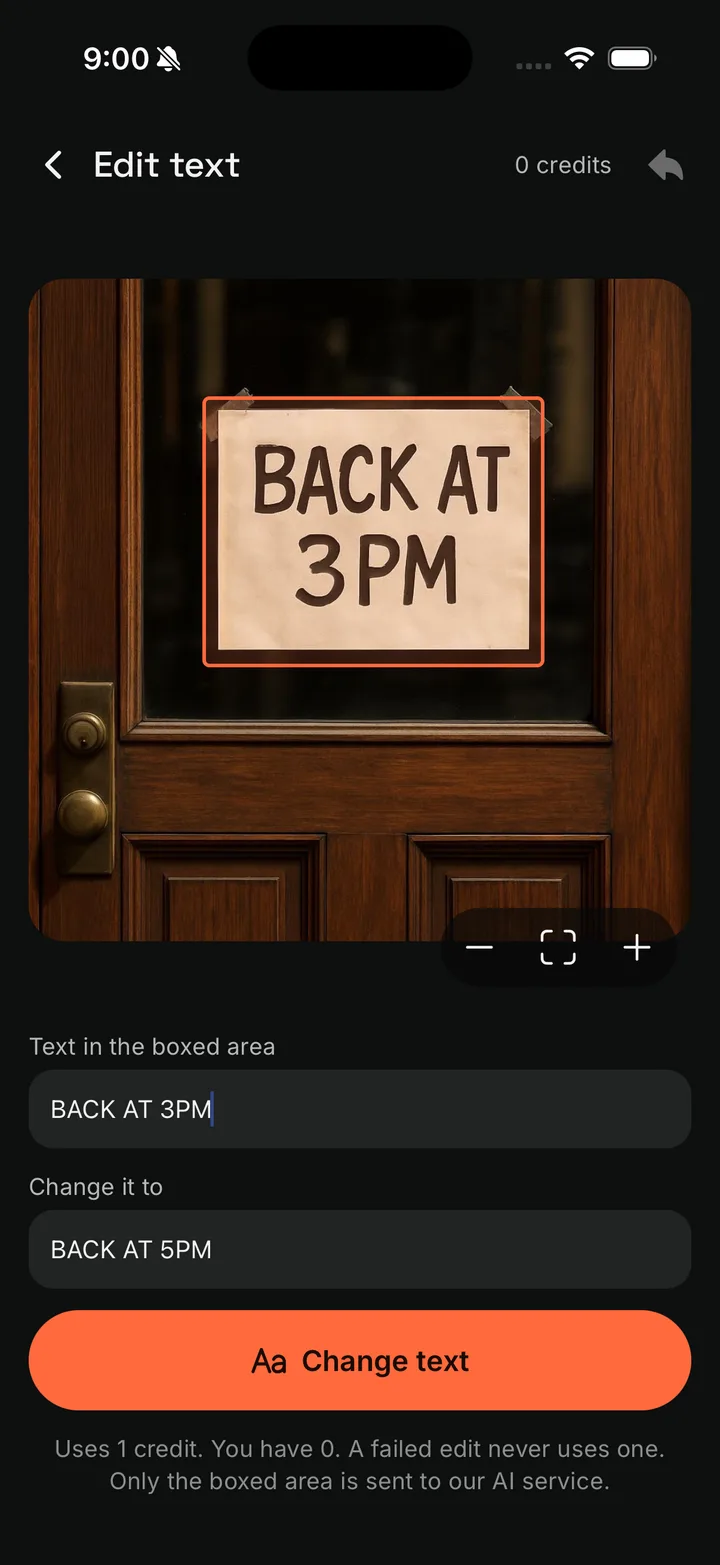
Keep the new text close in length to the old text. A similar word count fits the space better.
Step 5: Tap Change text
Tap the Change text button. Glyphswap redraws the boxed area with your new words.
Use Hold to compare to flip between the before and after. If you do not like it, undo and try again with a tighter box.
Step 6: Save or share
When you are happy, tap Done. Save the photo or share it.
That is the full process to edit text on photos. Six steps. No design degree.
Tips to edit text on photos with cleaner results
A few habits make a big difference. Use these every time.
Use a high-resolution photo
Sharp edges help the AI read the letters. Low-resolution images blur the strokes. Blurry strokes lead to messy results.
If you can, use the original file. Do not use a copy that was compressed by a chat app.
Keep the box tight
Cover only the words you want to change. A box that is too big can pull in extra background. A box that is too small can leave pieces of old letters.
Aim for a snug fit with a small margin.
Match the length
Try to keep the new text about the same length as the old. Changing "3PM" to "5PM" is easy. Changing "3PM" to "back tomorrow afternoon" will not fit.
If you need a longer line, use a wider area of the sign.
Choose flat, clear text
Printed text on flat surfaces works best. Think signs, posters, menus and labels.
Curved text on a bottle is harder. So is tiny text. So is text in strong shadow.
Fix one change at a time
Do one edit. Check it. Then do the next one. Small steps are easier to undo.
Compare before you save
Always use the compare button. Look at the edges of the letters. Look at the colour and the glow. Then save.
Common mistakes when you edit text on photos
Avoid these traps. They cause most bad edits.
- Using a blurry source. The app cannot guess what it cannot see.
- Boxing too much. A huge box changes parts of the photo you did not mean to touch.
- Typing a very long phrase. It will not fit and will look squeezed.
- Ignoring perspective. A sign shot at a steep angle is hard to redraw.
- Skipping the compare step. You miss small flaws that are easy to fix.
Fix these, and your results improve fast.
Privacy: what happens to your photo?
Many people worry about this. It is a fair question.
When you edit text on photos with Glyphswap, only the boxed area is sent to the AI service. The rest of your picture stays on your phone.
That matters when your photo shows faces, homes or private papers. You share only the small patch that needs the change.
The app also tells you the cost before you start. Each text edit uses one credit. A failed edit never uses one.
Edit text on photos responsibly
This part is important.
You can edit text on photos for design, fixes and fun. That is normal and safe.
You should never use it to deceive people. Do not change the text on:
- IDs or passports
- Receipts or invoices
- Contracts or certificates
- Bank statements
- Medical or legal papers
Altering documents to mislead someone can be fraud. It can hurt real people. It can also bring legal trouble for you.
A good rule is simple. If someone would be harmed by believing the edit is real, do not make it.
When you share an edited image that could be mistaken for the original, say it is edited. A short note builds trust.
Beyond text: more you can do with Glyphswap
Once you edit text on photos, you may want more tools. Glyphswap includes two others.
Remove or swap the background
The Cutout tool lifts your subject from the scene. Then you can leave the background clear, pick a solid colour, add a gradient, blur it, or paint a new backdrop.
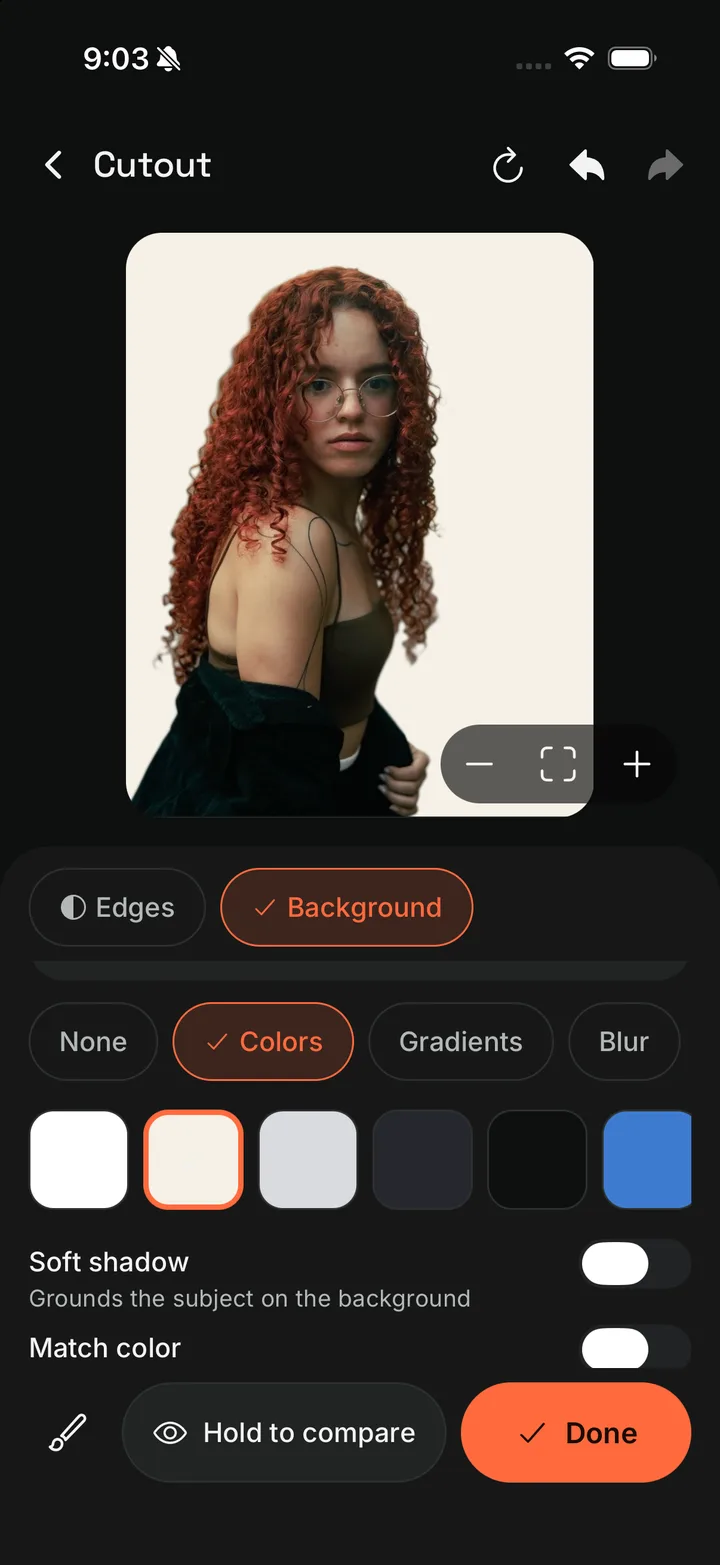
This is handy for product shots, profile pictures and quick posters.
Make passport photos
The Passport and ID tool helps you size a photo for official use. It gives you country sizes, a face guide and print sheets.
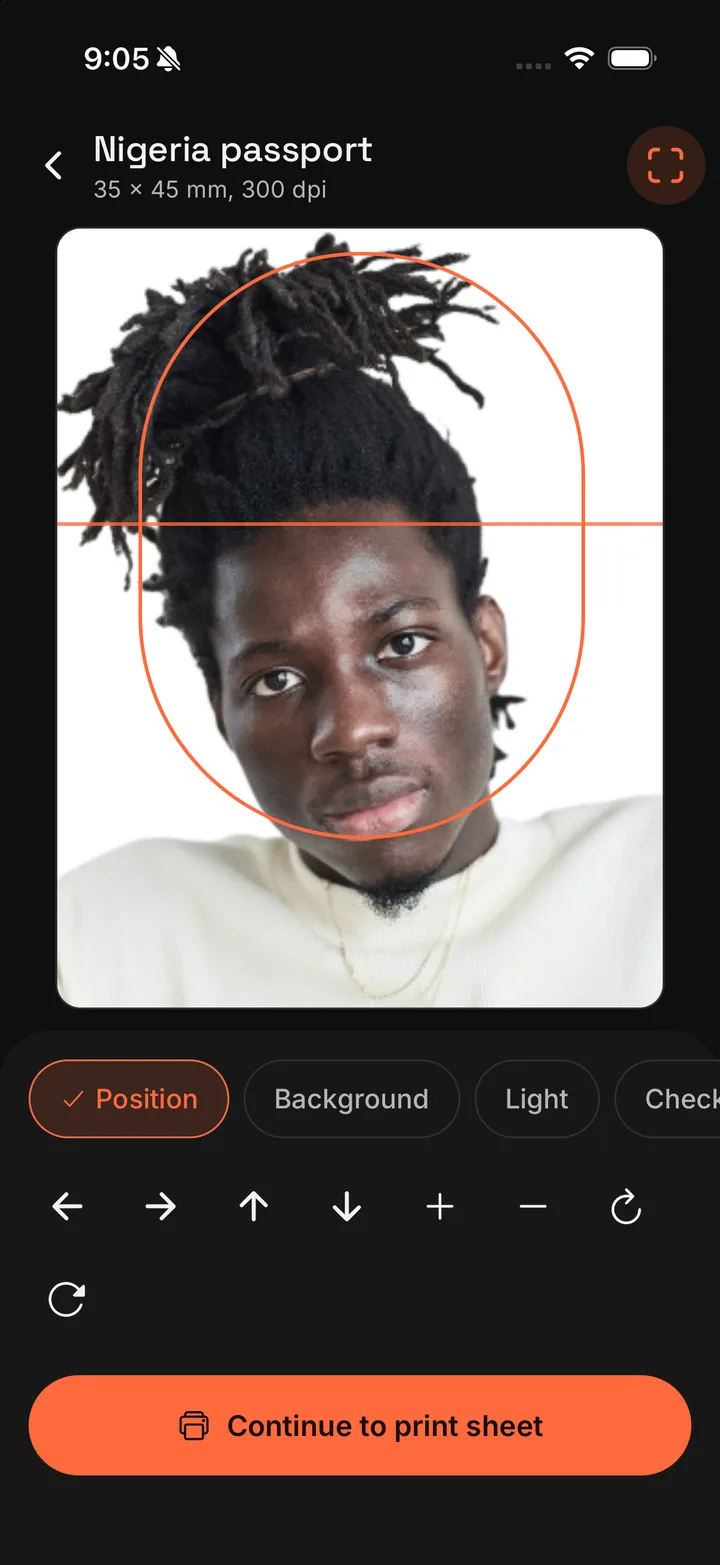
Always check the rules of the office that will accept your photo. Requirements can change.
Together, these three tools cover many everyday photo jobs. You can edit text on photos, clean up a background and prepare an ID photo, all in one app.
Edit text on photos: quick comparison
Here is how the three methods stack up.
| Method | Speed | Skill needed | Looks natural |
|---|---|---|---|
| Desktop design software | Slow | High | Very good |
| Plain text box overlay | Fast | Low | Often poor |
| AI photo text editor | Fast | Low | Good on clear photos |
If you want speed and a natural look, an AI photo text editor is the best fit for most people.
Real examples of how to edit text on photos
Here are a few ideas to try on your first day.
A shop sign. Change the opening hours for a post. Box the hours. Type the new ones.
A birthday banner. Fix a misspelled name in a party photo. Box the name. Retype it.
A menu board. Update a price before you share the picture with customers.
A street sign mock-up. Show a client how a new name will look in place.
A screenshot. Change a word in a chat or note before you share it, as long as you are not deceiving anyone.
Each task takes the same few steps. Box. Type. Tap.
Final thoughts
You do not need to retake a photo for one wrong word. You do not need a laptop or a design course.
To edit text on photos, pick a clear picture. Box the old words. Type the new ones. Compare the result. Save it.
Do it with care. Use it for good work. Keep your edits honest.
Ready to try it? Download Glyphswap on the App Store and edit text on photos on your iPhone today.
Frequently asked questions
Can I edit text on photos on my iPhone?
Yes. Install a photo text editor such as Glyphswap, open a picture, draw a box around the words, type the new text and tap Change text. The whole job takes under a minute.
What is the easiest way to edit text on photos?
The easiest way is an app built for it. You box the old text, type the new text, and the app redraws that area of the photo. You skip layers, masks and font matching.
Can I change text in a photo for free?
Glyphswap is free to download. Text edits use credits, and a failed edit never costs a credit. Check the App Store listing for current credit details.
Will the new text look real?
Results depend on the photo. Clear, well-lit, flat text works best. Curved, blurry or very small text is harder, so try a sharper photo or a tighter box.
Is it legal to edit text on photos?
Editing your own photos for design, fixes, jokes and mock-ups is normal. Never alter IDs, receipts, contracts, or any document to deceive someone. That can be fraud.
Does the app upload my whole photo?
No. Glyphswap sends only the boxed area to its AI service. The rest of your photo stays on your phone.